Showing posts with label a16. File exchange using smartphone. Show all posts

Saturday, March 22, 2008

Using MMS to exchange file

You can compose MMS messages on your Nokia phone and attach media files from the Gallery to them. You can also save file attachments in incoming MMS messages to the Gallery. MMS messages can transfer files from device to device, or from device to email address. You need special software to send MMS messages from a computer to a phone. From the user's perspective, using MMS to transfer files is very similar to using email, except for the following differences:

MMS messages are pushed to the target device. The user sees the message as it arrives. There is no need to check the Inbox from time to time.

MMS is usually easier to configure than email. Most devices are sold with MMS preconfigured.

Since MMS traffic is a low priority in wireless networks, it might take some time (perhaps tens of minutes, or even longer) to reach the destination device. In addition, the MMS message might not arrive at all, if it takes more than 24 hours to deliver it.

If you're not on an unlimited data plan, MMS traffic might be cheaper than email traffic over the General Packet Radio Service (GPRS) network.

MMS messages are typically limited to a maximum of 100 KB.

Tuesday, March 18, 2008

Email

Email attachments are very popular for sending files across the Internet. You can use email attachments to transfer files to and from mobile clients as well. The Nokia native email client allows you to attach media files from the device's Gallery to outgoing email, or save media file attachments in incoming messages to the Gallery. Using more advanced email client applications, you might be able to send and save any attachment file outside of the Gallery. Then you can manipulate those files with programs such as FExplorer.

MMC Reader and Writer

Many Nokia phone models have expansion slots for Memory Card , which provide additional memory space for images, multimedia files, third-party applications, etc. For some devices, such as the original N-Gage, the Memory Card card is directly accessible from a computer. When you hook an N-Gage to a PC via a USB cable, the Memory Card card appears as a removable disk in the Windows OS. For other devices, you can buy a generic Memory Card reader/writer and connect it to your computer via USB. In both cases, you can manipulate the files and directories via Windows Explorer, Mac OS X Finder, a Linux file manager, or the good old command line.

If you do connect in this way, you might find some interesting files (.DS_Store and .Trashes on a Mac, for example) on the
Memory Card card. My advice is to ignore these, since they will be re-created each time you plug them in, and they do no harm.

Infrared Data Connection

Another popular choice is to "beam" files via the Infrared Data port. This method is particularly effective for transferring files between two IR-enabled Nokia phones. Since IR communication requires a clear line of sight, first you have to make sure the two devices' IR ports are facing each other and that there is nothing in between them. On the sending device, you can just choose the Send Via infrared menu for the target file; on the receiving device, the IR port must be turned on and the incoming file will be saved into the message Inbox, just as with Bluetooth file transfer.

Using IR to transfer files between a phone and a computer is more complex, since most computers do not come with an IR port. You can buy an add-on IR adapter and plug it into the computer (usually via a USB port). The device driver that comes with the IR port should include a file transfer utility.

Thursday, March 13, 2008

File Transfer using Bluetooth in Mac OS X.


Mac OS X has a Bluetooth File Exchange program under the /Applications/Utilities directory. You can also launch it from the Bluetooth menu item (if you've enabled it in System Preferences Bluetooth) by selecting Send File from the Bluetooth menu item. You can use this program to send files to devices. The Bluetooth settings management tool in System Preferences allows you to specify where to store the incoming files in the local computer. Figure above shows the file-sending window in the file exchange utility, and the configuration window for how to save the incoming files.

Bluetooth File Transfer in Linux

If you run the KDE or GNOME desktop systems on Linux, you can use their Bluetooth graphical user interface (GUI) tools to send and receive files to and from mobile phones:

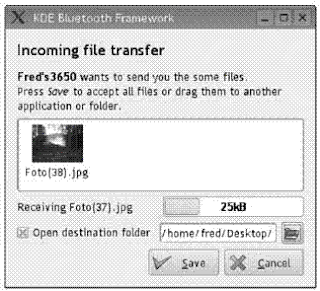
You can download the KDE Bluetooth Framework from the project's web page at http://kde-bluetooth.sourceforge.net/. Figure above shows a Bluetooth incoming file received by the KDE Bluetooth Framework GUI.

You can download the GNOME Bluetooth Subsystem from the project's web page at http://usefulinc.com/software/gnome-bluetooth.

How to Transfer File Using Bluetooth?

The Bluetooth File Transfer service allows any two Bluetooth-enabled devices to exchange files.

To send a file (e.g., an image file in the Gallery application) from your mobile phone, navigate to the file and choose Send Via Bluetooth from the Options menu. Then, choose a device from a list of local devices to send the file to. The devices are identified by their Bluetooth names.

When a Nokia phone receives an incoming file, the file is delivered to the Inbox. When the user opens the message, the phone automatically identifies the file type and processes it accordingly. For example, a received image is saved to the Gallery, a business card is stored to the Contacts list, and an application installation package is executed. To send a file from a computer, you need to use an operating systemspecific Bluetooth file exchange utility, described in the following sections.

You can send only one file at a time over Bluetooth. Hence, this method can be tedious if you need to transfer many files (e.g., photos from a multiday trip). The ZipMan application, available from Symbian (http://www.wildpalm.co.uk/ZipMan7650.html), allows you to create a zip archive of multiple files on your phone and send them all together to a computer. If you need to send many files from a PC to your phone, you can also zip them together first and then use Zip-Man to extract the files from the archive once the phone receives the zipped file.

Windows versions before XP Service Pack 2 (SP2)
With the WIDCOMM Bluetooth utility installed, you can use the File Transfer service to send and receive files. You can right-click the Bluetooth icon in the system tray to bring up the pop-up menu that lists all available services. The received files and business cards are automatically stored into specified directories on the local disk. You can configure those destination directories in the Bluetooth configuration tool.

Windows XP SP2.
On Windows XP SP2, a Bluetooth File Transfer Wizard is located under the Start Programs Accessories Communications menu. The wizard allows you to send and receive files to and from other Bluetooth devices. If you choose to send a file, the wizard first prompts you to choose a target device and then asks you to select the file to send from the PC. If you choose to receive a file, the PC listens for the incoming file and prompts you to save it once it arrives. Alternatively, you can right-click the Bluetooth icon in the system tray and select the "Send a file" or "Receive a file" menu item to directly invoke the appropriate functionalities in the Bluetooth File Transfer Wizard.

You have to click the "Receive a file" choice to prepare the PC to receive files over Bluetooth. Otherwise, the device will show a Connection Failed message when you try to send a file to the PC.

Sunday, March 9, 2008

Using the Nokia PC Suite for File Exchange

You can exchange files between a Nokia mobile phone and a computer in a variety of ways, including via the Nokia PC Suite, Bluetooth file transfer, infrared beaming, email, MMS, and web downloading and uploading.

In this section, I'll discuss ways to send and receive files to and from a mobile phone. Why do you want to do that? Well, here are some example scenarios:

If you have a camera phone, you probably want to download your pictures to your PC or web site for editing or sharing.

You might want to customize your phone with wallpaper and ring tones stored in media files.

You might want to exchange contacts (i.e., business cards) and calendar items between the computer and the phone via VCF-formatted files. The native Personal Information Manager (PIM) applications on the computer or on the phone can process these files once they arrive.

The list goes on. But this gives you an idea why file exchange with a mobile phone is important. As you can see, it is often the basis for further hacks.

Once a file is transferred to your phone, you can use the appropriate program to locate and process the file. For instance, media files are handled by the Gallery program, application installation files are handled by the Application Manager program, and VCF files (business cards) are handled by the Contacts program. If a file has an unknown format, you can locate and examine it using a file browser program such as FExplorer.

The easiest way to exchange files between a Nokia phone and a Windows-based PC is to use the Nokia Phone Browser program in the Nokia PC Suite. The program adds a Nokia Phone Browser folder to the root directory in the Windows File Explorer. Each device that is connected to the PC Suite shows up as a subdirectory in the Nokia Phone Browser folder. Each device directory is identified by its name (e.g., its Bluetooth name if the device is connected via Bluetooth).

You can drag files into and out of the mapped device folders in the Windows File Explorer. The changes are automatically synchronized to the device. In addition to the phone browser, the Nokia PC Suite also provides audio, image, and video manager programs so that you can manage mobile multimedia files on your phone.

You can also use the Nokia PC Suite to transfer and install Java and Symbian application installation files into your phone.

The advantages of the Nokia PC Suite are its easy-to-use interface and its support for multiple connection methods, including Bluetooth, infrared data connection, USB cable, and serial cable. However, as I discussed in "Use the Nokia PC Suite", the Nokia PC Suite does not fit all usage scenarios. In the rest of this hack, I will discuss other ways to exchange files between a Nokia phone and a computer.